Insurance verification integration is sold separately. Contact your TSD Sales Representative at sales@tsdweb.com for more information.
ATMS GEN2.0 offers Insurance Verification integration with two providers, Axle or Canopy Connect, to automate your process of capturing and/or verifying a customer's automobile insurance policy on expedited appointments and agreements.
Setup Requirements
Contact TSD to get started. Initial configuration of the integration must be completed by TSD Support. Contact your TSD Sales Representative at sales@tsdweb.com for more information.
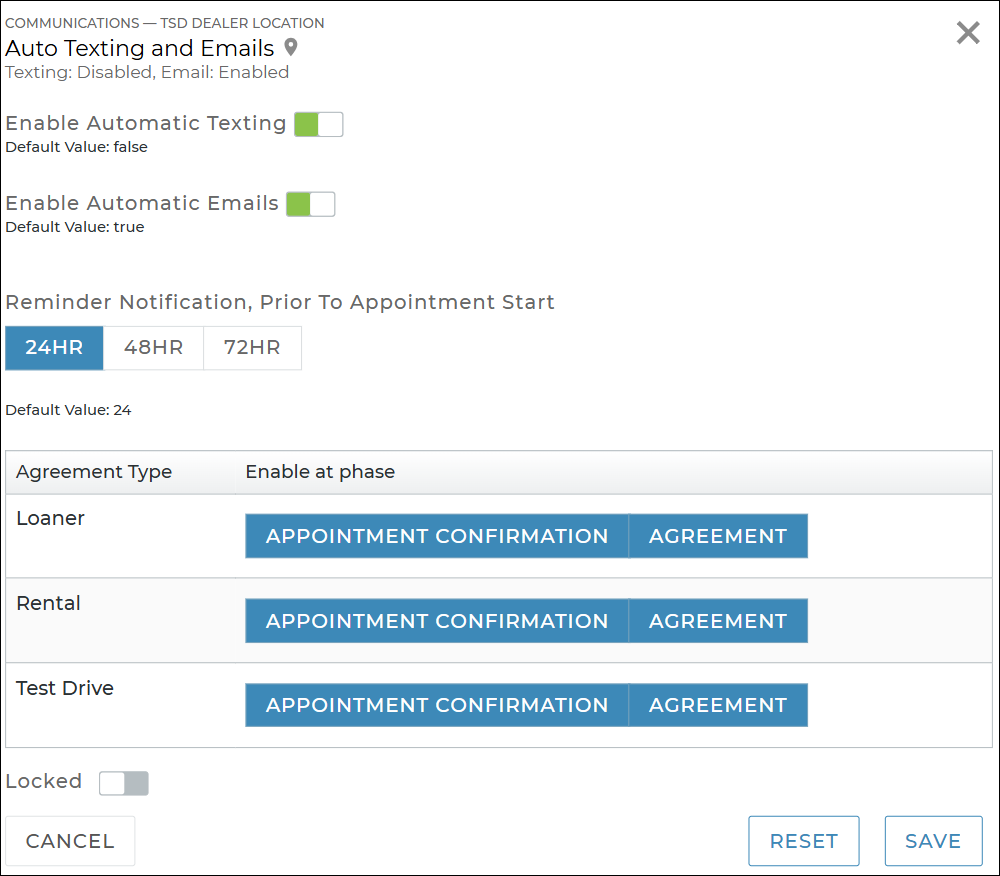
Turn on automatic texting and/or emailing. Use the Auto Texting and Emails setting to allow texts and/or emails to be sent to your customer for appointment confirmations.
Hover to view the full-sized image.
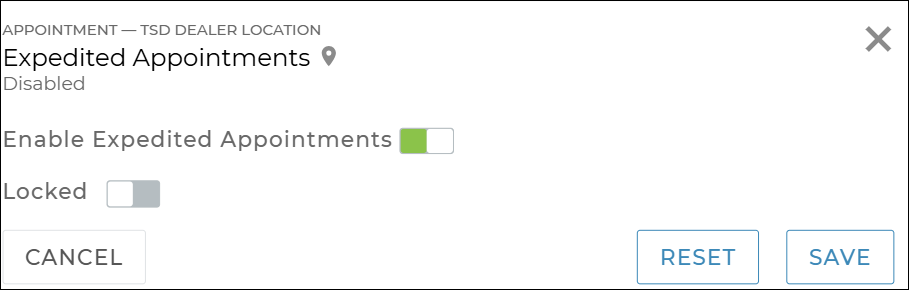
Turn on Expedited Appointments. Use the Expedited Appointments setting to turn on this feature for your location, which includes a link to the appointment in your automated appointment confirmation texts and emails.
Hover to view the full-sized image.
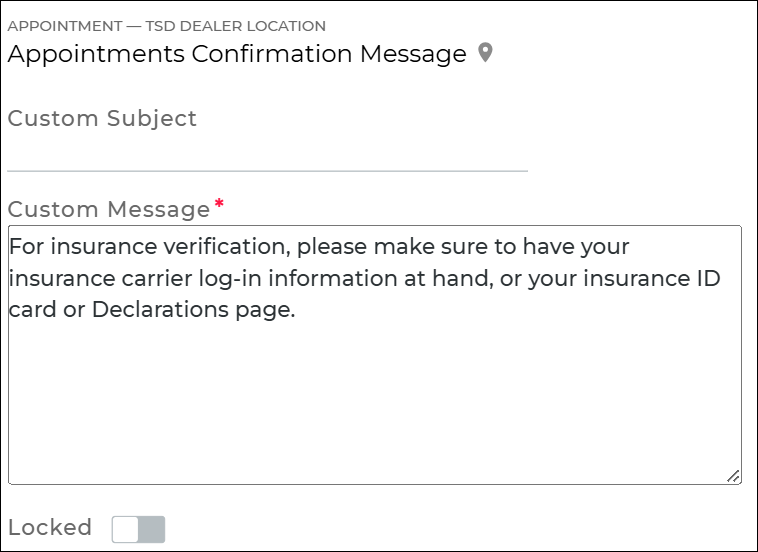
(Optional.) Customize your appointment confirmation email or text message. You can use the Appointments Confirmation Message setting to change the default email subject and add additional text to the body of the email or text (for example, a reminder that providing insurance will make for a faster experience).
Then, if you want certain employee roles to be able to override this verification requirement, grant the Allow Override Insurance Verification permission. This will make an OVERRIDE Verification button available on the agreement.
Connect an Insurance Policy
Explore the insurance verification process from your customer's perspective.
If connecting a policy on an Expedited Appointment, the customer accesses the appointment from the email or text and clicks Connect Policy to launch the Axle insurance dialog. Note that, on the appointment itself, the individual insurance fields are not displayed; these will only be made available if the customer exits the connect policy process or encounters an error.
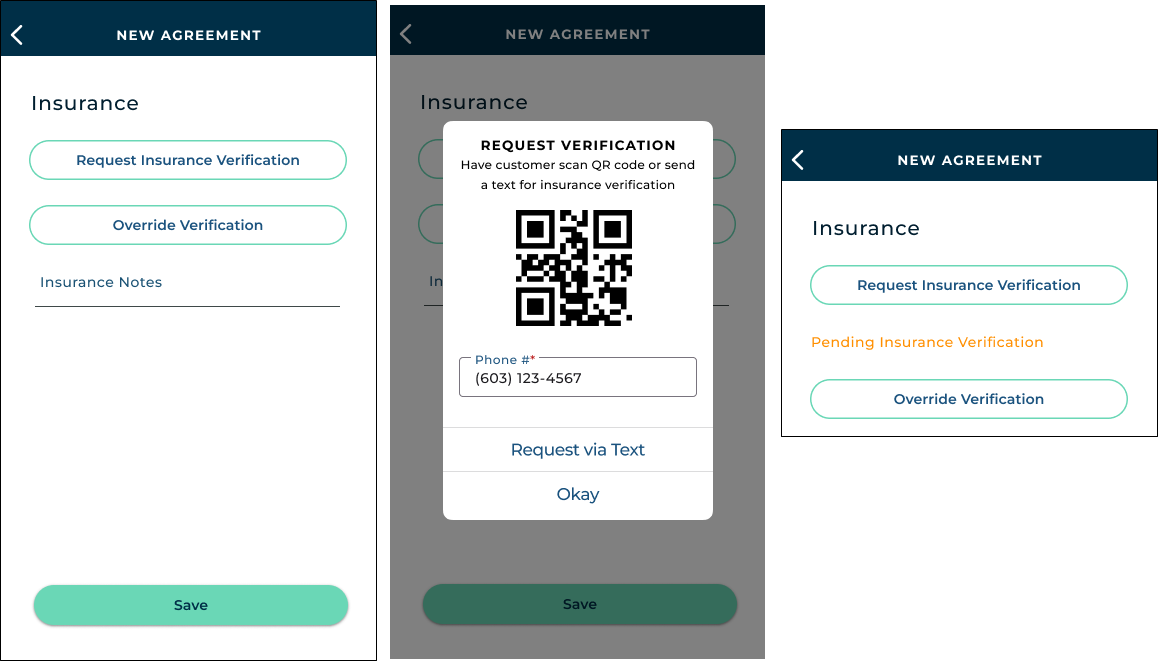
If connecting a policy on a new walkup agreement, you can click request insurance verification, then choose to have the customer scan a QR Code on your screen to access the Insurance dialog, or text the QR code to the customer. Click OK.
Hover to view the full-sized image.
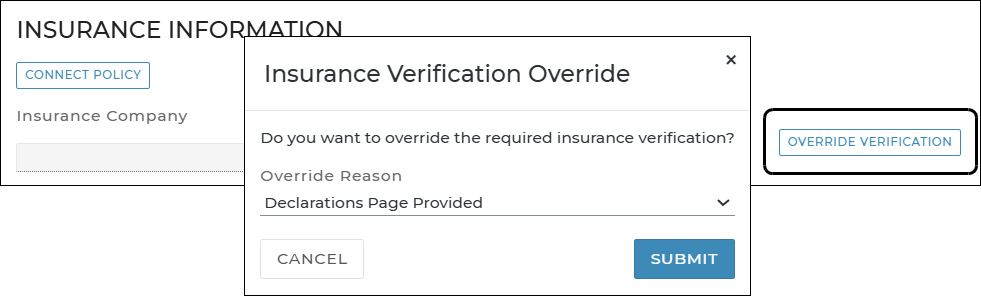
Note: If insurance verification is required on your agreements (via your setups), employees with the Allow Override Insurance Verification permission can bypass this requirement via an Override Verification option. Read more:
Click OVERRIDE Verification .
Select a reason to bypass the insurance verification requirement (e.g., Phone Call to Carrier, VIP/Recent Returning Customer. Declarations Page Provided. or Other).
The insurance fields become available to fill in; your Override Reason is displayed.
Hover to view the full-sized image.
Hover to view the full-sized image.
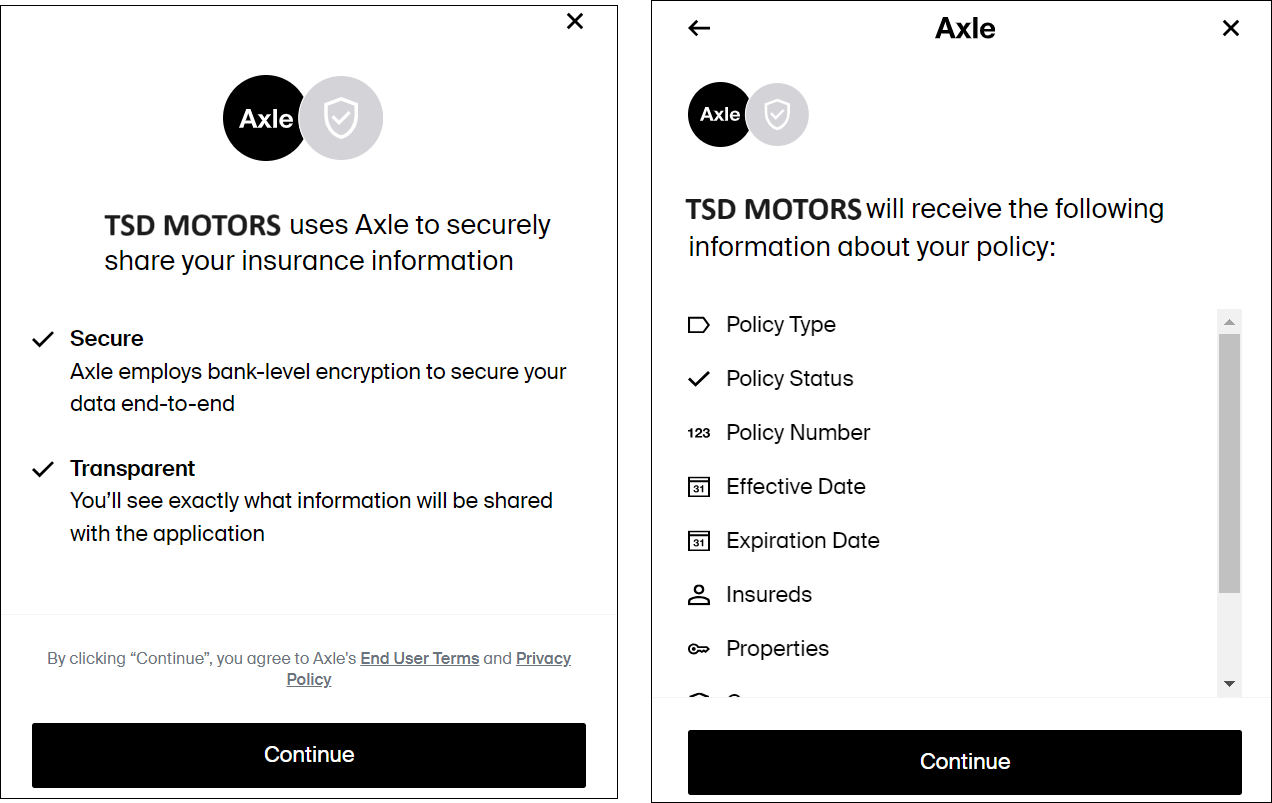
The Insurance dialog guides the customer through connecting a policy.
Note: If connecting a policy from an agreement, Pending Insurance Verification is displayed, to let you know the customer is in the process of connecting a policy. This is not displayed on an expedited appointment; the appointment's insurance fields simply remain unavailable until the customer finishes or exits the process.
Disclaimer about security and transparency. Hover to view the full-sized image.
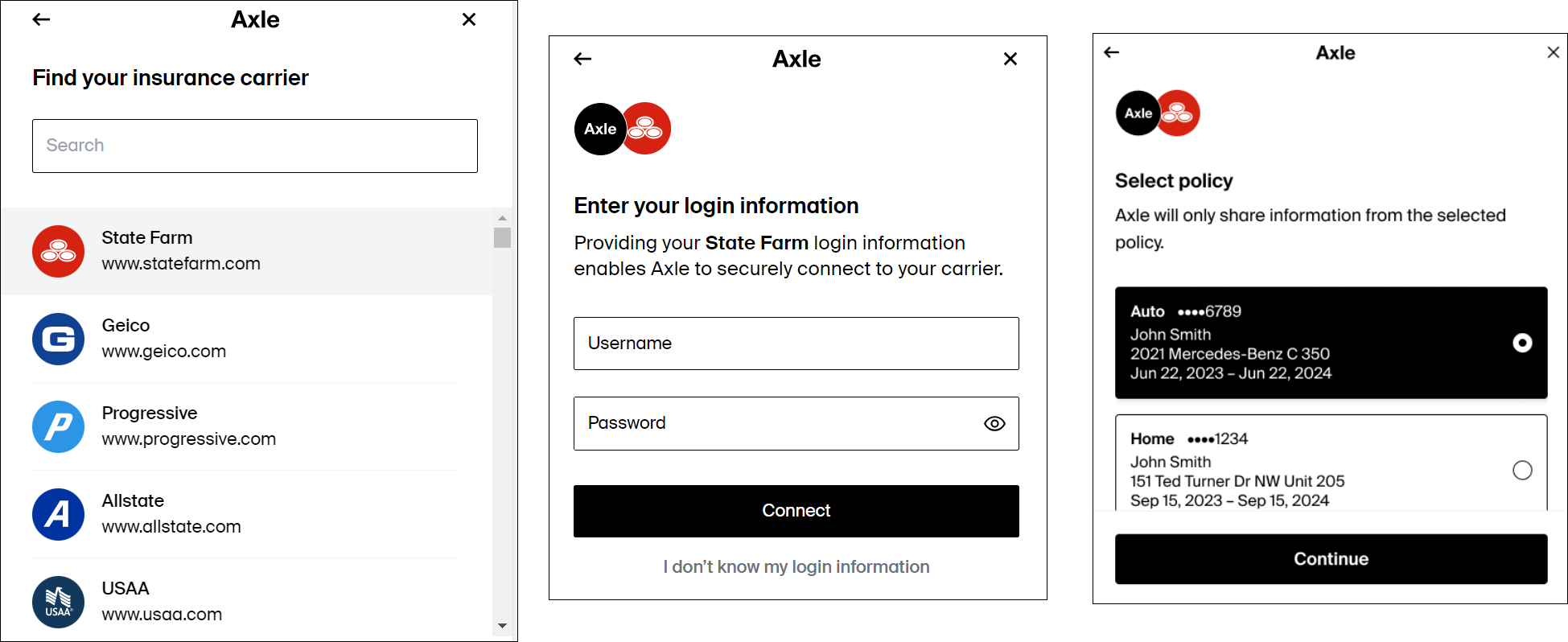
Selecting a carrier, logging in, and selecting a policy.
Hover to view the full-sized image.
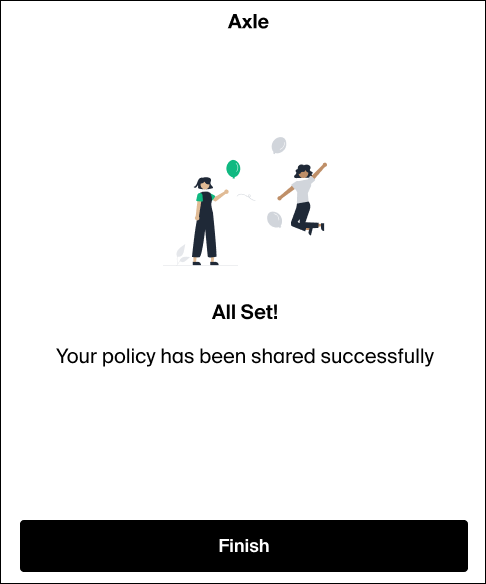
Finishing the insurance sync process. Hover to view the full-sized image.
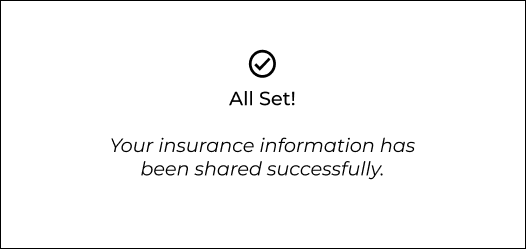
The customer is either returned to the expedited appointment, if applicable, where the insurance fields are filled in and unavailable for editing, or a screen with a message: "All set! Your insurance information is shared successfully."
Hover to view the full-sized image.
After an insurance policy is connected on the appointment or agreement:
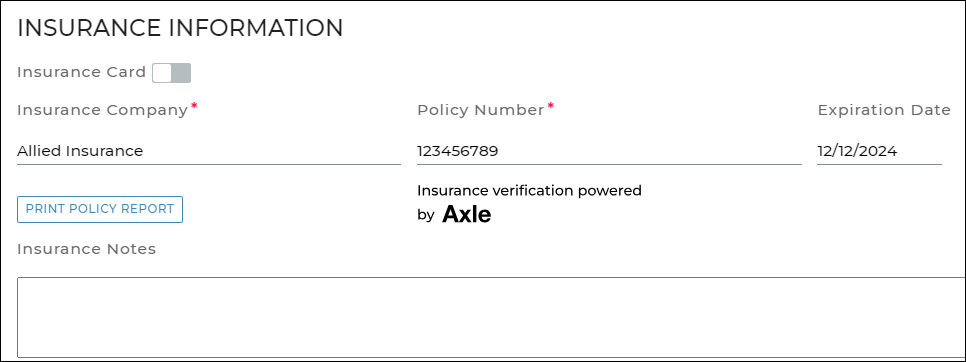
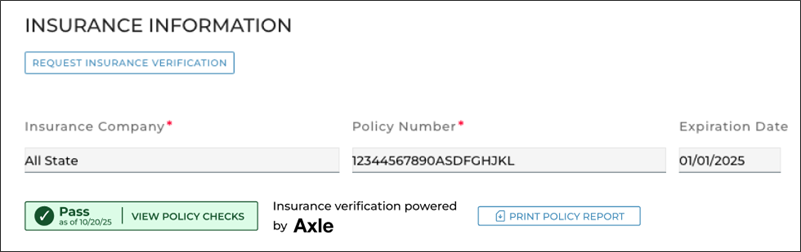
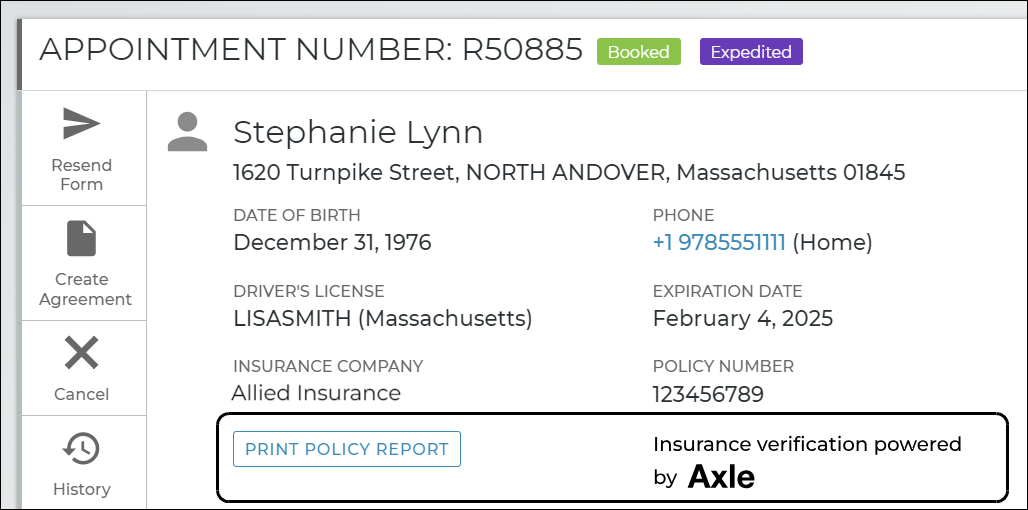
Insurance policy information (Insurance Company, Policy Number, Expiration Date, and customer VIN of the insured customer automobile) is updated on the appointment, agreement, and customer record. The "Insurance verification powered by Axle" badge is also displayed.
Web view: hover to view the full-sized image.
This verification status is applicable for the life of the appointment and agreement, but it is removed if you manually edit this information and is reset on new appointments or agreements opened for the customer.
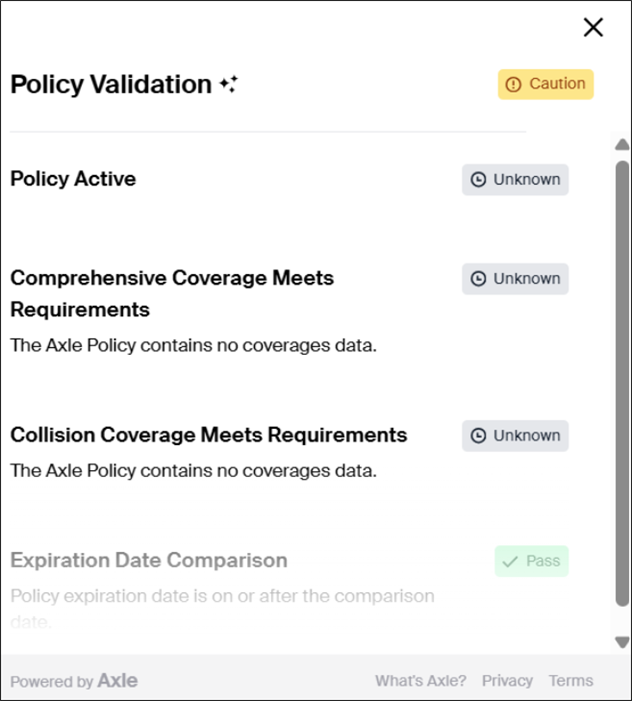
You can see a Pass / Fail status (with the date of the last check) directly on the appointment or agreement, so you immediately know whether the policy is good to go or needs a closer look. Click View Policy Checks to open Axle's iframe for check-by-check detail (e.g., valid expiration date, active policy, comprehensive/collision coverage) to pinpoint exactly what needs attention. See "Pass / Fail Status & Policy Checks (Axle) ".
If the customer uploaded an insurance card or document instead of logging into the insurance carrier account, the image is displayed, along with the following message: "Please note: The customer uploaded a document that was not verified or reviewed by Axle." This information is maintained through the appointment, agreement, including at close, and added to the customer record.
Whether you're on web or mobile, the steps to connect a policy are nearly identical, just with the platform's usual look and feel.
If connecting a policy on an Expedited Appointment, the customer accesses the appointment from the email or text and clicks Connect Policy to launch the Axle insurance dialog. Note that, on the appointment itself, the individual insurance fields are not displayed; these will only be made available if the customer exits the connect policy process or encounters an error.
If connecting a policy on a new walkup agreement, you can request insurance verification on the Customer stepper of the agreement, within the Insurance section. Tap Request Insurance Verification, then choose to have the customer scan a QR Code on your screen to access the Insurance dialog, or text the QR code to the customer.
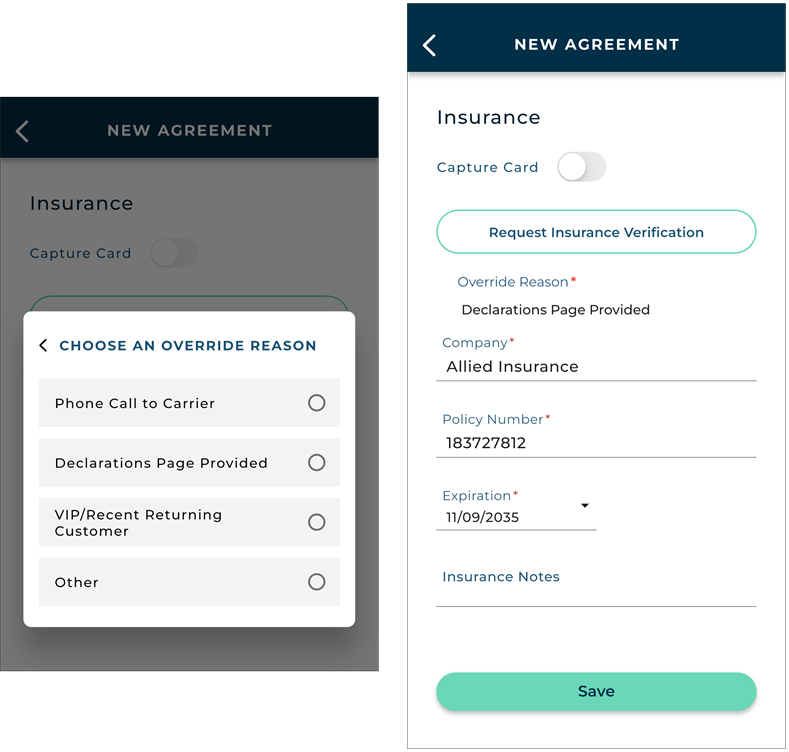
Note: If insurance verification is required on your agreements (via your setups), employees with the Allow Override Insurance Verification permission can bypass this requirement via an Override Verification option. Read more:
Click OVERRIDE Verification .
Select a reason to bypass the insurance verification requirement (e.g., Phone Call to Carrier, VIP/Recent Returning Customer. Declarations Page Provided. or Other).
The insurance fields become available to fill in; your Override Reason is displayed.
Hover to view the full-sized image.
Hover to view the full-sized image.
The Insurance dialog guides the customer through connecting a policy.
Disclaimer about security and transparency. Hover to view the full-sized image.
Selecting a carrier, logging in, and selecting a policy.
Hover to view the full-sized image.
Finishing the insurance sync process. Hover to view the full-sized image.
The customer is either returned to the expedited appointment, if applicable, where the insurance fields are filled in and unavailable for editing, or a screen with a message: "All set! Your insurance information is shared successfully."
Hover to view the full-sized image.
Note: If connecting a policy from an agreement, Pending Insurance Verification is displayed. This is not displayed on an expedited appointment; the appointment's insurance fields simply remain unavailable until the customer finishes or exits the process.
Hover to view the full-sized image.
After an insurance policy is connected:
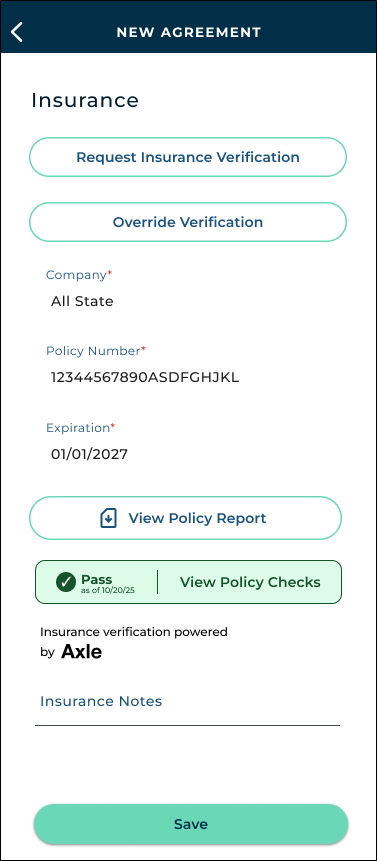
The information (Insurance Company, Policy Number, Expiration Date, and customer VIN of the insured customer automobile) is filled in and the "Insurance verification powered by Axle" badge is displayed. This information is maintained through the appointment, agreement (including at close), and added to the customer record.
This verification status is applicable for the life of the appointment and agreement, but it is removed if you manually edit this information and is reset on new appointments or agreements opened for the customer.
You can see a Pass / Fail status (with the date of the last check) directly on the appointment or agreement, so you immediately know whether the policy is good to go or needs a closer look. Tap View Policy Checks to open Axle's iframe for check-by-check detail (e.g., valid expiration date, active policy, comprehensive/collision coverage) to pinpoint exactly what needs attention. See "Pass / Fail Status & Policy Checks (Axle) ".
If the customer uploaded an insurance card or document instead of logging into the insurance carrier account, the image is displayed, along with the following message: "Please note: The customer uploaded a document that was not verified or reviewed by Axle." This information is maintained through the appointment, agreement, including at close, and added to the customer record.
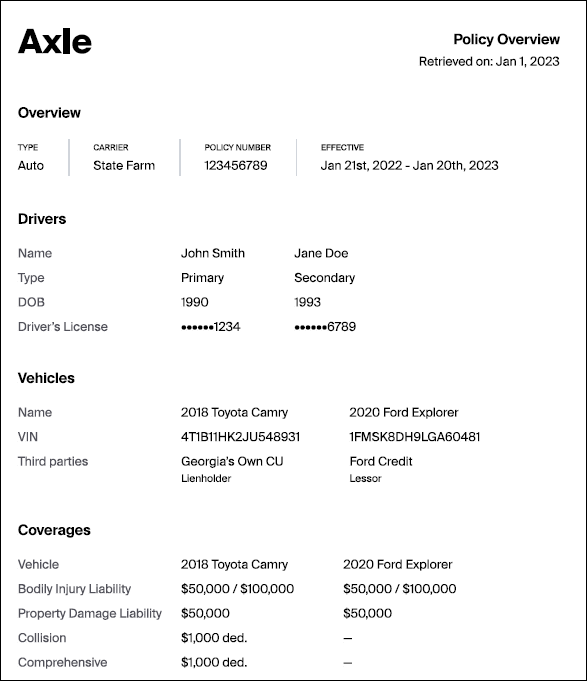
A View Policy Report button is available on the appointment and agreement to download a Policy PDF containing coverage information, including deductible limits, vehicles on the policy, and names of insured drivers. See "View an Insurance Policy Report (Axle)" for more information.
If connecting a policy on an Expedited Appointment, the customer accesses the appointment from the email or text and clicks Connect Policy to launch the Canopy Connect insurance dialog.
If connecting a policy on a new walkup agreement, you can click request insurance verification, then choose to have the customer scan a QR Code on your screen to access the Insurance dialog, or text the QR code to the customer. Click OK.
Hover to view the full-sized image.
Note: If insurance verification is required on your agreements (via your setups), employees with the Allow Override Insurance Verification permission can bypass this requirement via an Override Verification option. Read more:
Click OVERRIDE Verification .
Select a reason to bypass the insurance verification requirement (e.g., Phone Call to Carrier, VIP/Recent Returning Customer. Declarations Page Provided. or Other).
The insurance fields become available to fill in; your Override Reason is displayed.
Hover to view the full-sized image.
Hover to view the full-sized image.
The Insurance dialog guides the customer through connecting a policy.
Note: If connecting a policy from an expedited appointment or from an agreement, Pending Insurance Verification is displayed, to let you know the customer is in the process of connecting a policy.
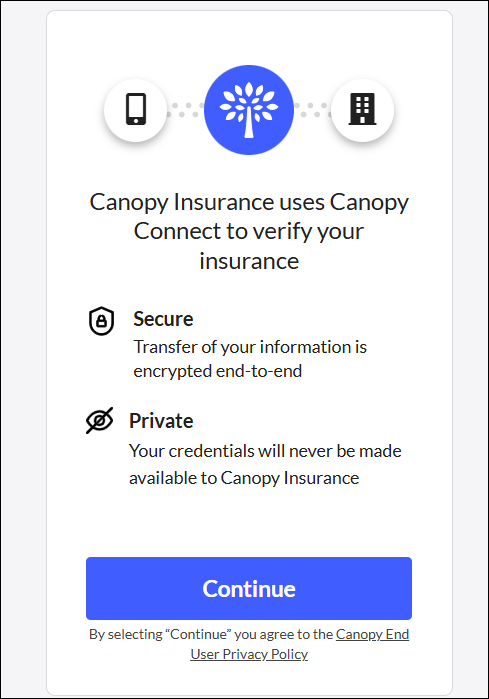
Disclaimer about security and transparency. Hover to view the full-sized image.
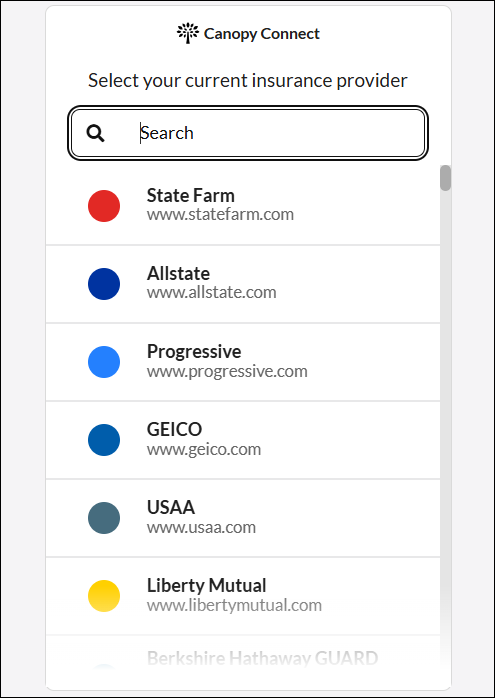
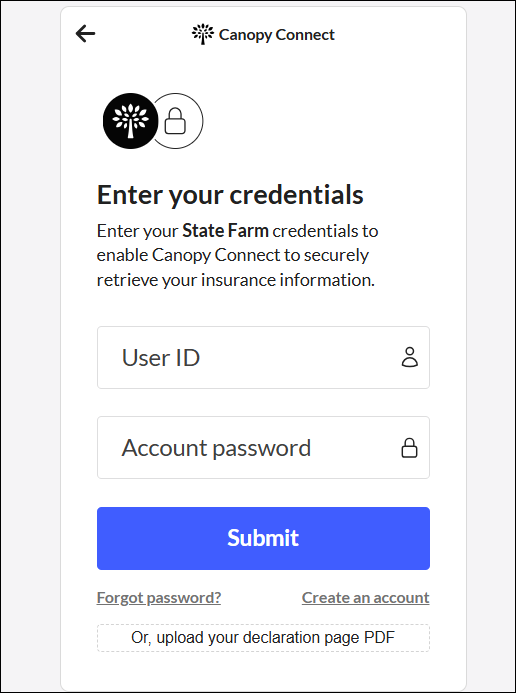
Selecting a carrier and logging in. Hover to view the full-sized image.
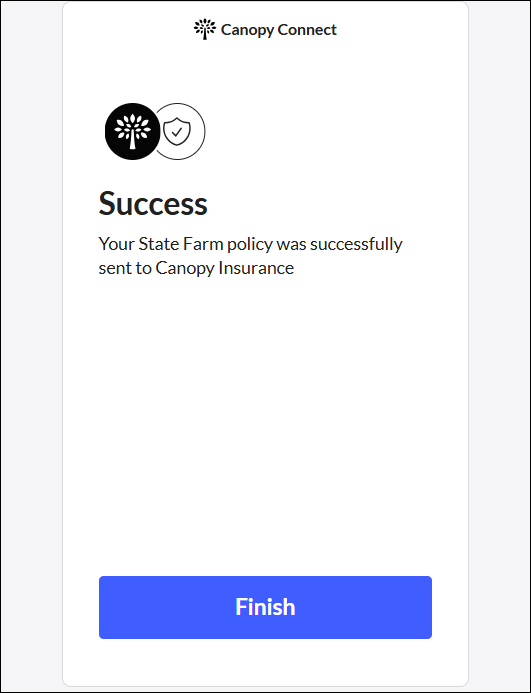
Finishing the insurance sync process. Hover to view the full-sized image.
Note: While the customer goes through the insurance verification process, Pending Insurance Verification is displayed.
After an insurance policy is connected on the appointment or agreement:
Insurance policy information (Insurance Company, Policy Number, Expiration Date, and customer VIN of the insured customer automobile) is updated on the appointment, agreement, and customer record. The customer VIN, Make, Year, and Model are all updated, and the "Insurance Verification powered by Canopy" badge is also displayed.
Web view: hover to view the full-sized image.
This verification status is applicable for the life of the appointment and agreement, but it is removed if you manually edit this information and is reset on new appointments or agreements opened for the customer.
If connecting a policy on an Expedited Appointment, the customer accesses the appointment from the email or text and clicks Connect Policy to launch the Canopy Connect insurance dialog.
If connecting a policy on a new walkup agreement, you can request insurance verification on the Customer stepper of the agreement, within the Insurance section. Tap Request Insurance Verification, then choose to have the customer scan a QR Code on your screen to access the Insurance dialog, or text the QR code to the customer.
Note: If insurance verification is required on your agreements (via your setups), employees with the Allow Override Insurance Verification permission can bypass this requirement via an Override Verification option. Read more:
Click OVERRIDE Verification .
Select a reason to bypass the insurance verification requirement (e.g., Phone Call to Carrier, VIP/Recent Returning Customer. Declarations Page Provided. or Other).
The insurance fields become available to fill in; your Override Reason is displayed.
Hover to view the full-sized image.
Hover to view the full-sized image.
The Insurance dialog guides the customer through connecting a policy.
Disclaimer about security and transparency. Hover to view the full-sized image.
Selecting a carrier and logging in. Hover to view the full-sized image.
Finishing the insurance sync process. Hover to view the full-sized image.
Note: While the customer goes through the insurance verification process, Pending Insurance Verification is displayed.
Hover to view the full-sized image.
After an insurance policy is connected:
The information (Insurance Company, Policy Number, Expiration Date, and customer VIN of the insured customer automobile) is filled in and the "Insurance Verification powered by Canopy" badge is displayed. This information is maintained through the appointment, agreement, including at close, and added to the customer record.
This verification status is applicable for the life of the appointment and agreement, but it is removed if you manually edit this information and is reset on new appointments or agreements opened for the customer.
View Insurance Policy Details
After an insurance policy is connected through the integration, several types of information are present on the appointment and/or agreement.
On web - Verified Insurance with Axle Hover to view the full-sized image.
On mobile - Verified Insurance with Axle Hover to view the full-sized image.
On web - Verified Insurance with Canopy Connect Hover to view the full-sized image.
Insurance Fields
Insurance fields (Insurance Company, Policy Number, Expiration Date, and customer VIN of the insured customer automobile) are filled in and maintained through the appointment, agreement (including at close), and added to the customer record.
Verification Badge
The verification badge for the provider ("Insurance verification powered by [Axle or Canopy]") is displayed, and applicable for the life of the appointment and agreement, but is removed if you manually edit this information and is reset on new appointments or agreements opened for the customer.
Pass / Fail Status & Policy Checks (Axle)
The insurance verification Pass / Fail status (with the date of the last check) is displayed on the appointment / agreement, so you immediately know whether the policy is good to go or needs a closer look.
Passas of 9/15/26VIEW POLICY CHECKSFailas of 9/15/26VIEW POLICY CHECKS
This status remains visible once the agreement is closed or voided, though the button becomes unavailable (dimmed) at that point.
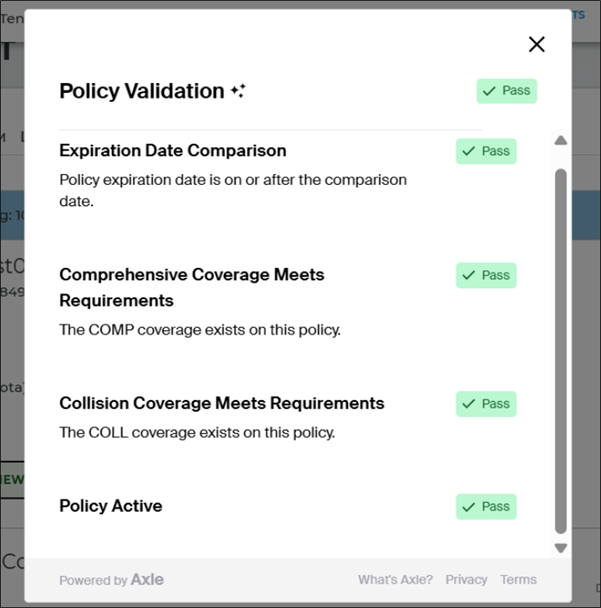
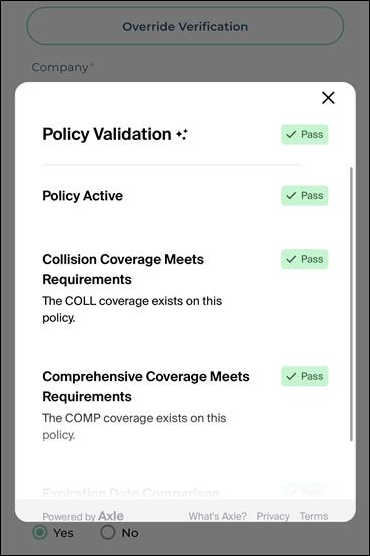
Click VIEW POLICY CHECKS to open Axle's iframe for check-by-check detail (e.g., valid expiration date, active policy, comprehensive/collision coverage) to pinpoint exactly what needs attention. Each tap re-pings Axle and refreshes the result, so you are always working from current data.
On web & mobile - Passed policy checks Hover to view the full-sized image.
On web - Failed policy checks Hover to view the full-sized image.
Policy Report (Axle)
Only applicable when Axle is the provider of this integration.
If a customer's insurance policy is connected through Axle, you can download a Policy PDF containing coverage information, including deductible limits, vehicles on the policy, and names of insured drivers.
Policy Report Sample Hover to view the full-sized image.
The Policy Report is available on the customer record, appointment, or agreement via the Print Policy Report button (View Policy Report on mobile).
On web & mobile - Policy Report Hover to view the full-sized image.
Insurance Declaration Page Canopy
Only applicable when Canopy Connect is the provider of this integration.
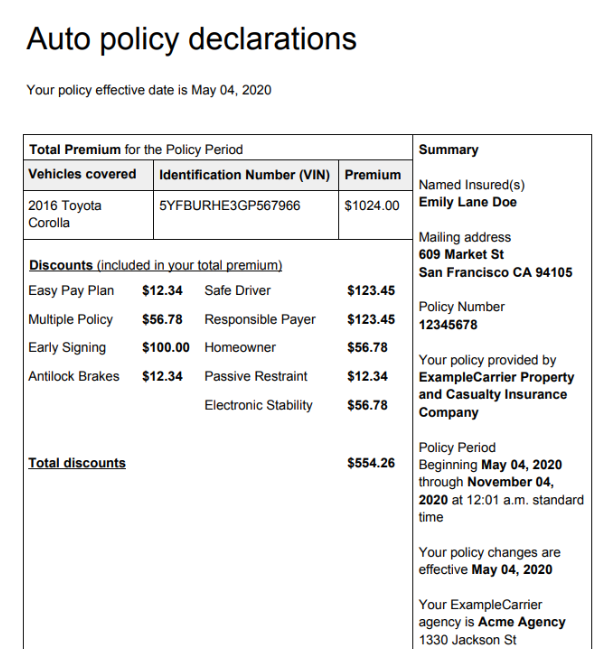
If a customer's insurance policy is verified on an expedited appointment or agreement through Canopy, you can download a Declarations Page PDF containing verified coverage information.
Declarations Page Hover to view the full-sized image.
The Declarations Page is available on the customer record, appointment, or agreement via the PRINT DECLARATIONS PAGE button.
On web - Access the Declarations Page
Insurance Card or Document Photo (if Uploaded)
If the customer uploaded an insurance card or document instead of logging into the insurance carrier account, the image is displayed, along with the following message: "Please note: The customer uploaded a document that was not verified or reviewed by Axle." This information is maintained through the appointment, agreement, including at close, and added to the customer record.
Reporting Options
Track insurance verification stats on the Length of Use and Service Advisor reports. Stay on top of how often employees are capturing verified insurance policies on agreements, as well as the reasons selected for overriding insurance verification requirements at your location, if applicable.
On the log-in screen of the insurance dialog, options are available to:
reset the password.
set up a new account with the carrier.
manually upload an insurance document (insurance ID card or Declarations page). (Note that manually uploading a document is not considered validated by the carrier, so it will not be considered Verified by the provider. So, your location should still take the proper measures to make sure the customer is covered to drive the vehicle.)
If the customer uploaded an insurance card or document through the provider's Insurance Verification process, instead of logging into the insurance carrier account, the following is displayed on the customer record, appointment, and agreement: "Please note: The customer uploaded a document that was not verified or reviewed by Axle."
In this case, the data from the uploaded policy will still be updated, but the insurance will not be considered Verified by the provider. So, your location should still take the proper measures to make sure the customer is covered to drive the vehicle.
With Axle, in this situation, the dialog displays the following message: "Are you sure? Insurance verification is required. Declining verification through Axle may result delays." Your customer can choose Finish to return to the previous dialog, or Exit to close Axle, where a Skip Survey link is displayed with a message that the location will reach out to complete verification.
If the customer was in the process of verifying insurance from an expedited appointment, he or she is returned to the appointment. The customer can enter information into the insurance fields manually, or try connecting a policy again.
When a customer logs into his or her insurance carrier's account and is allowed to select a policy, each policy available for selection displays key information, including the first vehicle covered on the policy (if the policy covers multiple vehicles).
In other words, if the policy covers more than one vehicle, that first vehicle's coverage is used for filling in insurance information in ATMS GEN2.0.
Yes, you can edit the insurance information to override what was verified through the provider, but doing so removes the provider's verification status badge.

 Connect a policy with Axle